
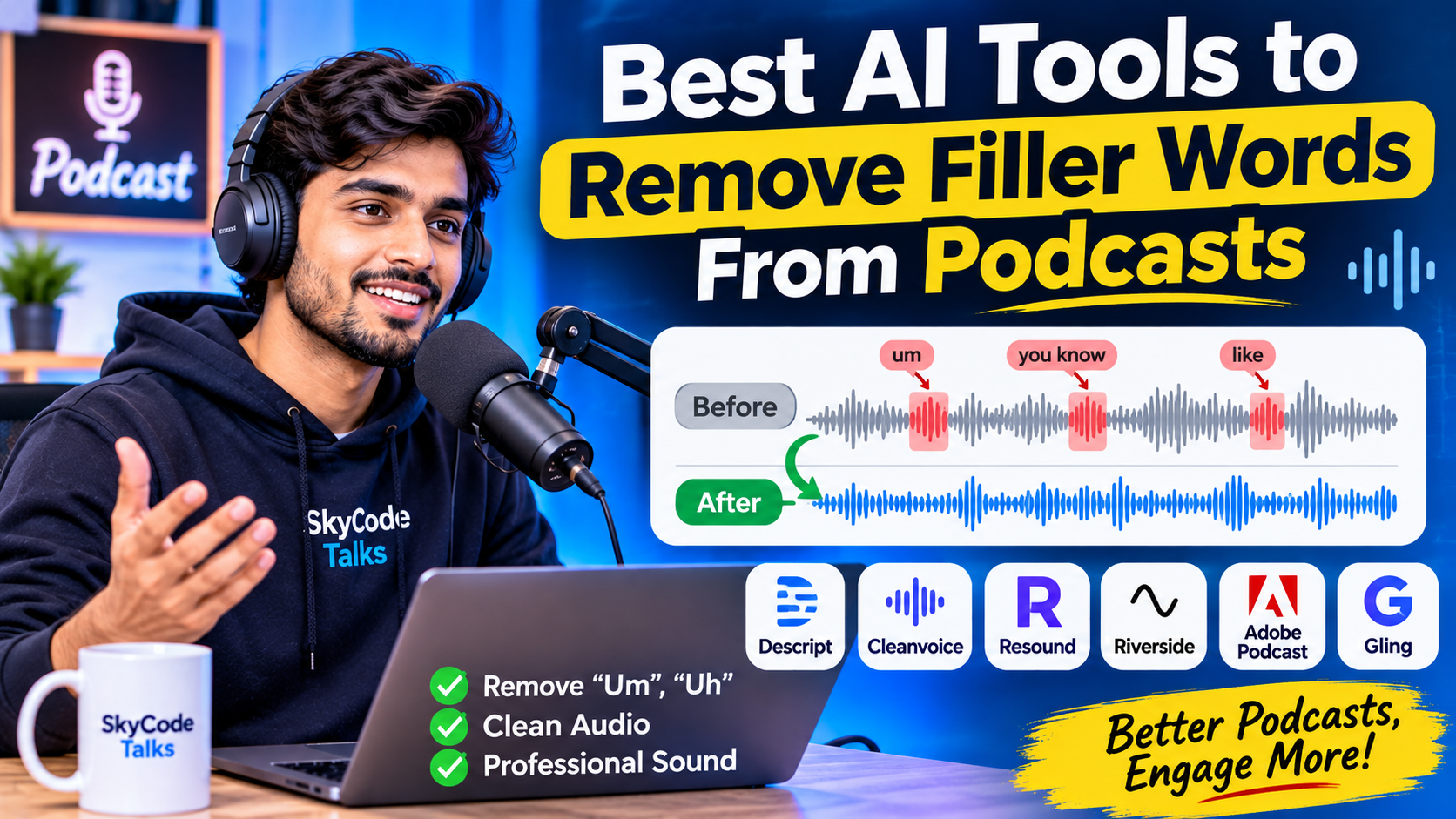
Recording a podcast is often easier than editing it. Even when you have interesting content and good recording equipment, small speaking habits can make your audio sound less polished.
Words such as “um,” “uh,” “you know,” “like,” repeated phrases, and unnecessary pauses can interrupt the flow of a podcast. Removing these manually can take a lot of time, especially when editing long interviews or multiple episodes.
Fortunately, AI-powered audio editing tools can now detect many of these unwanted words and help remove them automatically.
In this guide, we’ll explore the best AI tools to remove filler words from podcasts in 2026, compare their features, explain what each tool does best, and help you choose the right option for your editing workflow.
Whether you’re a beginner podcaster, YouTube creator, interviewer, or professional audio editor, these tools can make podcast editing easier.
Quick Comparison: Best AI Filler Word Removal Tools
| AI Tool | Best For | Filler Word Removal | Free Option |
|---|---|---|---|
| Descript | All-in-one podcast editing | Yes | Yes |
| Cleanvoice AI | Dedicated audio cleanup | Yes | Trial / limited access |
| Resound | Automated podcast editing | Yes | Check current plan |
| Riverside | Recording and editing interviews | AI editing features | Yes, limited |
| Adobe Podcast | Improving voice quality | Not a dedicated feature | Yes |
| Gling | Editing talking-head videos | Primarily silence and bad-take removal | Limited free plan |
| Auphonic | Audio leveling and mastering | Not its main feature | Limited free processing |
Quick recommendation: Descript is a strong choice for creators who want to edit an entire podcast using text. Cleanvoice is worth considering if your main goal is removing filler words and unwanted sounds. Resound is another option for automating podcast cleanup.
Note: Features and free-plan limits can change. Check each provider’s official website before choosing a paid subscription.
1. Descript – Best Overall AI Tool to Remove Filler Words
Descript is one of the most useful AI-powered editing tools for podcast creators. Its biggest advantage is that you can edit audio and video by editing the automatically generated transcript.
Instead of searching through a long audio timeline to find every “um” or “uh,” you can review detected filler words directly in the transcript.
Key Features
- Automatically detects common filler words.
- Removes “um,” “uh,” “like,” “you know,” and repeated words.
- Text-based audio and video editing.
- AI-powered audio enhancement with Studio Sound.
- Transcription and captions.
- Podcast and video editing in one workspace.
How to Remove Filler Words Using Descript
- Visit the official Descript website.
- Create an account and start a new project.
- Upload your podcast audio or video.
- Allow Descript to generate the transcript.
- Open the filler-word removal feature.
- Review the detected words and choose which ones to remove.
- Listen to the edited recording before exporting.
One useful feature is that you can review detected words rather than blindly removing everything. This helps preserve natural conversations.
Pros
- Easy text-based editing.
- Useful for both audio and video podcasts.
- Combines transcription and editing.
- Suitable for creators who publish regularly.
Cons
- Some AI features require paid plans or credits.
- New users may need time to understand the interface.
- Automatic edits still need manual review.
Best for: Podcasters who want one platform for transcription, filler-word removal, and complete audio or video editing.
Official website: https://www.descript.com/
2. Cleanvoice AI – Best for Dedicated Podcast Audio Cleanup
Cleanvoice AI is designed specifically to clean up spoken audio. It can detect and remove unwanted filler words, mouth sounds, and other distracting elements from recordings.
Unlike a full video editor, Cleanvoice focuses on making spoken audio cleaner. This makes it particularly useful for interview-based podcasts where speakers frequently use words such as “um,” “uh,” and “you know.”
Key Features
- AI-powered filler-word detection and removal.
- Removes unwanted mouth sounds.
- Helps clean up long pauses and distracting audio elements.
- Supports podcast audio cleanup.
- Reduces the amount of manual editing required.
How to Use Cleanvoice AI
- Open the Cleanvoice website.
- Upload your podcast recording.
- Select the cleanup options you need.
- Let the AI process your recording.
- Review the processed audio.
- Download the cleaned version.
Pros
- Focuses on podcast audio cleanup.
- Useful for interview recordings.
- Helps reduce repetitive manual editing.
- Offers a specialized alternative to full editing software.
Cons
- It is not a complete podcast recording and publishing platform.
- You should review automatic edits before publishing.
- Check current processing limits and pricing before subscribing.
Best for: Podcasters who already have an editing workflow and mainly need an AI tool to remove filler words and distracting sounds.
Official website: https://cleanvoice.ai/
3. Resound – Best for Automated Podcast Editing
Resound is another AI-powered option for podcast producers who want to reduce the time spent on repetitive editing tasks.
It focuses on helping creators prepare cleaner podcast episodes by identifying unwanted speech elements and making the editing process more efficient.
For creators who regularly publish interviews, discussions, or conversational episodes, an automated editing workflow can be useful.
Key Features
- AI-assisted podcast editing.
- Filler-word detection and removal.
- Helps identify unnecessary pauses.
- Audio cleanup and editing workflow.
- Designed around podcast production.
Why Choose Resound?
Resound is worth considering if you want a tool focused on podcast post-production instead of a large video-editing suite.
However, automatic editing is not always perfect. Review the output carefully, especially when multiple speakers are talking or when someone speaks quickly.
Pros
- Podcast-focused workflow.
- Helps reduce repetitive editing.
- Useful for regular podcast production.
Cons
- Not designed to replace every professional audio editor.
- Check current language support and plan limits.
- Automatic edits may require manual corrections.
Best for: Podcast creators looking to automate parts of their editing process.
Official website: https://www.resound.fm/
4. Riverside – Best for Remote Podcast Interviews
Riverside is popular among creators who record remote interviews and conversations. It combines recording and editing features in one platform.
Its main advantage is its recording workflow: it captures separate local tracks for participants, which can make remote interview production easier.
Riverside also provides AI-assisted editing features. Depending on the current plan and available features, these can help speed up the process of cleaning and preparing recordings.
Key Features
- Remote podcast recording.
- Separate audio and video tracks.
- AI-assisted editing.
- Transcription and text-based editing.
- Tools for creating short clips.
- Browser-based recording and production.
Pros
- Useful for remote interviews.
- Recording and editing in one platform.
- Separate tracks make speaker-level editing easier.
- Helpful for video podcasts.
Cons
- More features than you may need if you only want to remove filler words.
- Some features and usage limits depend on your subscription.
- Check the current editor workflow for the specific filler-removal feature you need.
Best for: Interview-based podcasts and creators who record guests remotely.
Official website: https://riverside.fm/
5. Adobe Podcast – Best Free Option for Improving Voice Quality
Adobe Podcast is useful when your podcast recording has background noise, echo, or unclear speech.
Its Enhance Speech feature uses AI to improve spoken audio and make recordings sound clearer.
However, there is an important difference: Adobe Podcast Enhance Speech is primarily an audio-enhancement tool, not a dedicated filler-word deletion tool.
If you want to remove every “um” or “uh,” you may need another editor alongside Adobe Podcast.
Key Features
- AI-powered speech enhancement.
- Background noise reduction.
- Helps improve voice clarity.
- Browser-based workflow.
- Audio and supported video enhancement options.
How to Use Adobe Podcast
- Visit Adobe Podcast.
- Open Enhance Speech.
- Upload your audio recording.
- Let the tool process your file.
- Preview the improved audio.
- Download the enhanced recording.
Adobe’s free plan has usage and file-duration limits. Its published plan information lists a 30-minute maximum file duration for free Enhance Speech, with higher limits on the paid offering.
Pros
- Easy to use.
- Useful for improving poor-quality recordings.
- Free option available.
- No complicated audio-editing workflow required.
Cons
- Does not replace a dedicated filler-word remover.
- It focuses on speech enhancement rather than transcript-based editing.
- Free usage has limits.
Best for: Beginners who want to improve podcast voice quality without learning complicated audio software.
Official website: https://podcast.adobe.com/enhance
6. Gling – Useful for Removing Unwanted Pauses in Talking-Head Videos
Gling is primarily designed for editing talking-head videos, tutorials, and video content.
It helps creators identify and remove unwanted silences, bad takes, and repetitive sections. This can make a recording shorter and easier to watch.
It is not a dedicated podcast filler-word remover, so check whether its current features match your specific editing needs.
Key Features
- Detects and removes silences.
- Helps identify bad takes.
- Speeds up rough-cut editing.
- Useful for talking-head videos.
- Helps prepare footage for further editing.
Pros
- Useful for video creators.
- Reduces manual rough-cut editing.
- Can help shorten long recordings.
Cons
- Not the best choice for dedicated filler-word removal.
- Primarily focuses on video editing.
- May require another tool for detailed audio cleanup.
Best for: YouTubers and video podcasters who want to remove pauses and unwanted takes.
Official website: https://www.gling.ai/
7. Auphonic – Best for Podcast Audio Leveling and Final Polish
Auphonic is an automated audio post-production tool. It helps podcasters improve the technical quality of their recordings through audio leveling, loudness normalization, and noise reduction.
It is important to understand that Auphonic is not primarily a filler-word removal tool. Instead, it can be useful after you have finished editing your podcast.
For example, you could remove filler words in Descript or Cleanvoice and then use Auphonic to improve the final audio levels.
Key Features
- Automatic loudness normalization.
- Audio leveling.
- Noise reduction.
- Audio post-production.
- Podcast-ready audio processing.
Pros
- Useful for final audio processing.
- Helps balance inconsistent volume.
- Can simplify technical audio adjustments.
Cons
- Not designed for transcript-based filler-word deletion.
- Not a complete podcast editor.
- Some advanced processing depends on the selected plan.
Best for: Podcasters who want to improve audio consistency before publishing.
Official website: https://auphonic.com/
Which AI Tool Should You Choose?
The right tool depends on what you want to fix.
| Your Requirement | Recommended Tool |
|---|---|
| Remove ums, uhs, and repeated words | Descript |
| Dedicated podcast audio cleanup | Cleanvoice |
| Automate podcast editing | Resound |
| Record remote podcast interviews | Riverside |
| Improve unclear voice recordings | Adobe Podcast |
| Remove pauses and bad video takes | Gling |
| Normalize audio and improve final sound | Auphonic |
If you only need to remove filler words, start by comparing Descript and Cleanvoice. If you need a complete podcast production workflow, Descript or Riverside may be a better fit.
How to Remove Filler Words From a Podcast Automatically
Most AI-powered filler-word removal tools follow a similar process.
Step 1: Upload Your Recording
Choose the podcast audio or video file you want to edit. Make sure the recording is clear enough for speech recognition.
Step 2: Generate a Transcript
The software converts spoken words into text. This allows the AI to identify words and phrases that may be unnecessary.
Step 3: Detect Filler Words
The tool identifies common expressions such as:
- Um
- Uh
- You know
- Like
- I mean
- Repeated words
- Unnecessary pauses
Step 4: Review the Suggested Edits
Do not automatically delete every detected word. Some expressions are part of natural conversation and may be important for the speaker’s tone.
Step 5: Export the Final Audio
Listen to the edited version and check for unnatural gaps, abrupt cuts, or missing words before publishing.
Should You Remove Every Filler Word From a Podcast?
No. Removing every filler word is not always a good editing decision.
Words such as “um,” “uh,” and “you know” can sometimes communicate hesitation, emotion, or a natural conversational rhythm.
For example:
Original: “I think, um, this is probably the best way to start.”
Over-edited: “I think this is probably the best way to start.”
The edited version may sound cleaner, but removing too many pauses can make a conversation feel unnatural.
A better approach is to remove distracting or repeated filler words while preserving the speaker’s personality.
This is particularly important for interviews, casual conversations, and storytelling podcasts.
Tips for Getting Better Results From AI Filler Word Removers
- Record in a quiet environment whenever possible.
- Use a good microphone to improve speech recognition.
- Avoid removing every hesitation automatically.
- Review edits around overlapping conversations.
- Check whether the tool supports your recording language.
- Listen to the final audio using headphones.
- Keep a copy of the original recording.
If you produce podcasts in Hindi or other Indian languages, test a short recording before purchasing a subscription. English filler-word detection does not necessarily mean that a tool will correctly detect Hindi-English mixed speech.
AI-Powered Podcast Editing Tools vs Traditional DAWs: Which Is Better in 2026?
Frequently Asked Questions
1. What is the best AI tool to remove filler words from podcasts?
Descript is a strong all-around option because it combines transcription, text-based editing, and filler-word removal. Cleanvoice is another option for creators who mainly need dedicated audio cleanup.
2. Can AI automatically remove um and uh from audio?
Yes. Tools such as Descript and Cleanvoice can detect common filler words and help remove them automatically. However, you should review the edits to avoid unnatural cuts.
3. Is there a free AI tool to remove filler words?
Descript offers a free plan with limited usage. You can also use free audio-enhancement tools such as Adobe Podcast, but remember that Adobe Enhance Speech improves voice quality rather than specifically deleting filler words.
4. Can I remove filler words from a video podcast?
Yes. Descript supports audio and video editing through its transcript-based workflow. Other video editors may also offer tools for removing pauses and unwanted sections.
5. Can AI remove filler words from Hindi podcasts?
Results depend on the tool’s language and transcription support. Hindi-English mixed conversations can be more difficult to process accurately. Always test a short recording and manually check the transcript before using automatic removal on a full episode.
6. Does removing filler words improve podcast quality?
It can make speech clearer and easier to follow, especially when a speaker repeatedly uses distracting expressions. However, removing too many fillers can make natural conversations sound robotic.
Final Verdict
AI-powered editing tools have made podcast cleanup much easier. You no longer need to listen to an entire recording repeatedly just to find every unnecessary “um” or “uh.”
For most creators, Descript is a strong starting point for all-in-one editing, while Cleanvoice is worth exploring for specialized audio cleanup. Resound is another option for automated podcast production.
Adobe Podcast and Auphonic are useful additions to a podcast workflow, but they solve different problems: voice enhancement and audio mastering rather than dedicated filler-word deletion.
Before paying for any tool, test it with a real recording from your own podcast. The best tool is the one that saves editing time without making your voice sound unnatural.