
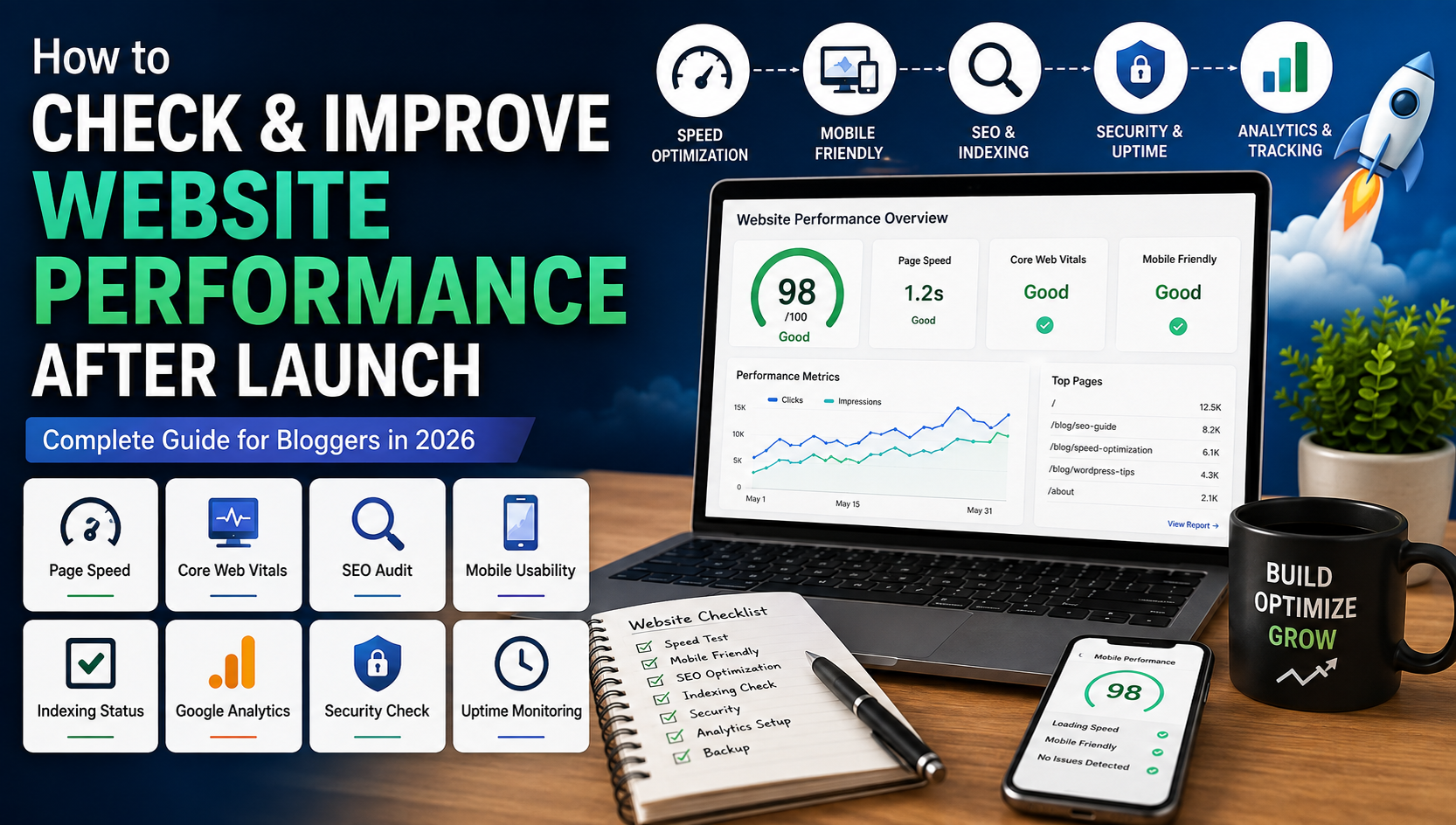
Launching a website is exciting.
You’ve purchased a domain, selected hosting, installed WordPress, configured your theme, published your first articles, and finally made the website live.
But there is one important mistake many new bloggers make:
They consider the job finished once the website is online.
It isn’t.
Launching your website is actually the beginning.
After your website goes live, you need to monitor its speed, search visibility, indexing, security, uptime, mobile experience, traffic, and overall performance.
A website can look perfectly fine on your computer while having serious problems for search engines or mobile visitors.
For example, you might have:
- A slow-loading homepage
- Images that are unnecessarily large
- Blog posts that aren’t indexed
- Broken internal links
- Poor mobile formatting
- Missing SEO metadata
- Security vulnerabilities
- No analytics tracking
- Poor Core Web Vitals
- Hosting-related downtime
The good news is that you don’t need to be a professional developer to monitor most of these things.
With the right tools and a simple routine, you can keep your website healthy and identify problems before they become serious.
This guide explains exactly what to check after launching a website and how often you should check it.
What Should You Check After Launching a Website?
A complete website performance check should cover several areas.
| Area | What to Check |
|---|---|
| Speed | Loading time and page performance |
| Core Web Vitals | LCP, INP and CLS |
| Mobile | Mobile usability and layout |
| SEO | Titles, descriptions, headings and links |
| Indexing | Whether Google can discover your pages |
| Analytics | Visitors and traffic sources |
| Security | SSL, updates and vulnerabilities |
| Uptime | Whether the website stays online |
| Images | Size, format and compression |
| Hosting | Server performance and resources |
| Links | Broken internal and external links |
| Content | Quality, freshness and originality |
| Backups | Whether your website can be restored |
| Search Performance | Impressions, clicks and rankings |
You don’t need to check everything every day.
The key is creating a simple maintenance routine.
1. Start With Website Speed
Website speed should be one of the first things you check.
When someone clicks your website from Google, they don’t want to stare at a blank screen while the page loads.
A slow website can also create a poor user experience, particularly for visitors using mobile devices or slower internet connections.
But don’t make the mistake of assuming:
“My website loads quickly on my laptop, so everything is fine.”
Your computer may have a fast internet connection, cached files, and powerful hardware.
Your visitors may not.
That’s why you should test your website using dedicated performance tools.
2. Use Google PageSpeed Insights
Google PageSpeed Insights is one of the easiest ways to evaluate webpage performance.
You can enter a URL and receive performance information for both:
- Mobile
- Desktop
It also provides recommendations for potential improvements.
Test more than just your homepage.
For a blog, test:
- Homepage
- A typical blog post
- Category page
- Important landing page
- Pages containing many images
This matters because different pages can have completely different performance characteristics.
For example, your homepage might load quickly while a blog post containing 15 large images loads much more slowly.
3. Understand Core Web Vitals
If you’re serious about SEO and user experience, you should understand Core Web Vitals.
The main metrics include:
Largest Contentful Paint (LCP)
LCP measures how quickly the main content becomes visible.
If your largest visible element takes too long to appear, users may feel that the page is slow.
Common causes include:
- Slow servers
- Large images
- Render-blocking resources
- Poorly optimized themes
- Too many scripts
Interaction to Next Paint (INP)
INP focuses on how quickly a page responds to user interactions.
For example, when someone clicks a menu or button, the website should respond promptly.
Heavy JavaScript can negatively affect responsiveness.
Cumulative Layout Shift (CLS)
CLS measures unexpected movement of content while the page loads.
Have you ever tried clicking a button and suddenly the page shifts?
That’s a layout shift.
It can happen when:
- Images don’t have reserved dimensions
- Ads load dynamically
- Fonts change layout
- Embedded content changes size
A stable page provides a much better experience.
4. Don’t Obsess Over a Perfect Speed Score
This is important.
Many bloggers become obsessed with getting:
100/100
on PageSpeed Insights.
That’s not necessarily the correct goal.
A website with a 100 score isn’t automatically going to outrank a website with a lower score.
Your goal should be:
Fast + stable + useful + easy to navigate.
Improve meaningful performance problems rather than blindly chasing a number.
5. Optimize Your Images
Images are one of the most common reasons blogs become slow.
A single high-resolution image from a smartphone can be several megabytes.
Uploading dozens of large images can dramatically increase page size.
Before uploading images:
- Resize them appropriately
- Compress them
- Use modern formats when appropriate
- Avoid unnecessarily huge dimensions
- Add descriptive filenames
- Add useful alt text
For example, instead of:
IMG_928374.jpg
use something descriptive such as:
best-blogging-tools-2026.webp
The filename won’t magically improve rankings, but it makes your media library easier to manage and provides useful context.
6. Use Lazy Loading Where Appropriate
Lazy loading allows images that aren’t immediately visible to load later as the visitor scrolls.
This can reduce the amount of content that needs to load initially.
For example, if a blog post contains 20 images, the browser doesn’t necessarily need to load every image before the visitor can read the introduction.
WordPress and modern browsers already support lazy-loading features, but you should still check your implementation rather than assuming everything is optimized automatically.
7. Check Mobile Performance
Never optimize your website only for desktop.
A large percentage of web traffic comes from smartphones.
Open your website on your phone and check:
- Is the text readable?
- Are buttons easy to tap?
- Does the navigation work?
- Are images overflowing?
- Are tables breaking the layout?
- Are ads covering content?
- Is there horizontal scrolling?
- Does the page load quickly?
A website that looks great on desktop but is frustrating on mobile can lose visitors quickly.
8. Check Your Website With Google Search Console
After speed, your next major priority should be search visibility.
Google Search Console helps you understand how Google discovers and displays your website.
Once your website is verified, monitor:
- Performance
- Indexing
- Sitemaps
- URL inspection
- Core Web Vitals
- Search queries
- Clicks
- Impressions
- Average position
9. Check Whether Your Pages Are Indexed
Publishing a blog post does not guarantee that Google will immediately index it.
That’s why you should occasionally check important URLs.
Use the URL Inspection feature in Search Console.
You can determine whether a page is:
- Indexed
- Not indexed
- Recently crawled
- Available for indexing
- Experiencing an issue
If important articles remain unindexed, investigate the reason instead of simply publishing more content.
10. Submit Your XML Sitemap
Your website should have an XML sitemap.
A sitemap helps search engines discover URLs on your website.
If you’re using WordPress with an SEO plugin, the sitemap is usually generated automatically.
After finding the sitemap URL, submit it through Google Search Console.
Also consider submitting your sitemap to Bing Webmaster Tools.
Remember:
A sitemap doesn’t guarantee rankings or indexing.
It simply helps search engines discover URLs.
11. Monitor Google Search Console Performance
Once your website starts receiving impressions, the Performance report becomes extremely useful.
Pay attention to:
Impressions
How often your pages appeared in search results.
Clicks
How many people clicked your search results.
CTR
The percentage of impressions that resulted in clicks.
Average Position
An approximate view of how your pages perform in search results.
12. Look for High-Impression, Low-CTR Keywords
This is one of the easiest opportunities for growing search traffic.
Imagine a page receives:
20,000 impressions
but only:
200 clicks
The page is getting visibility, but the search result isn’t attracting many clicks.
Possible improvements include:
- Better title
- More compelling meta description
- Clearer search intent
- Better content alignment
Don’t change titles randomly.
Use the actual search query data to understand what users are looking for.
13. Set Up Google Analytics
Google Search Console tells you about your performance in Google Search.
Google Analytics provides information about what happens after visitors reach your website.
Monitor:
- Users
- Traffic sources
- Landing pages
- Engagement
- Events
- Conversions
- Device types
- Geographic information
This helps answer questions such as:
Which articles are attracting visitors?
and:
What are those visitors doing after they arrive?
14. Don’t Focus Only on Pageviews
A common beginner mistake is celebrating pageviews without understanding user behavior.
Suppose Article A receives:
10,000 visits
while Article B receives:
2,000 visits.
At first glance, Article A looks better.
But what if:
- Article A generates no conversions
- Article B generates 100 email signups
Article B may actually be more valuable.
Traffic matters, but the quality and purpose of that traffic matter too.
15. Set Up Microsoft Clarity
Analytics tells you what is happening.
A behavior analytics tool can help you understand how users interact with the page.
Microsoft Clarity can provide useful insights such as:
- Heatmaps
- Click behavior
- Scroll behavior
- Session recordings
For example, you may discover that visitors rarely reach the second half of a long article.
That could indicate a problem with:
- Content structure
- Introduction
- Formatting
- Article length
- User intent
16. Check Your Website’s SEO Basics
Every published article should have basic on-page SEO.
Check:
SEO Title
Does it clearly describe the page?
Meta Description
Does it accurately explain why someone should click?
H1
Does the page have a clear primary heading?
H2/H3
Are headings logically structured?
URL
Is the URL short and descriptive?
Internal Links
Does the article link to relevant content on your website?
External Links
Where appropriate, does it reference useful authoritative resources?
SEO is not about putting keywords everywhere.
It’s about helping search engines and readers understand the page.
17. Check Internal Linking
Internal linking is particularly important for blogs.
When you publish a new article, look for older articles that are relevant.
For example, if you publish:
25 Best Blogging Tools
you might link to:
- Best SEO tools
- Best AI tools for bloggers
- Google Search Console guide
- Google Analytics guide
- Keyword research guide
Internal links help readers discover related content and help search engines understand relationships between your pages.
18. Find and Fix Broken Links
Broken links create a poor user experience.
They can also waste crawling resources and make your website look poorly maintained.
Check for:
- 404 pages
- Broken internal links
- Dead external links
- Incorrect URLs
- Redirect chains
Don’t blindly remove every external link that stops working.
If the resource is still important, find a relevant replacement.
19. Check Your Website Security
Security should never be an afterthought.
At minimum, your website should use HTTPS.
You should also keep:
- WordPress
- Themes
- Plugins
- Server software
updated.
Avoid installing plugins or themes from unknown sources.
Unused plugins should generally be removed rather than left sitting on your website.
20. Keep Regular Backups
Imagine spending six months creating a blog and then losing everything because of a hosting problem or configuration mistake.
That’s why backups matter.
A useful backup strategy should allow you to restore:
- WordPress files
- Database
- Important media
- Configuration
Don’t assume:
“My hosting company has backups, so I’m completely safe.”
Understand what your hosting provider actually backs up, how frequently backups occur, and how restoration works.
For important websites, maintaining an independent backup can provide additional protection.
21. Monitor Website Uptime
A website that is offline can’t receive visitors.
Uptime monitoring services can notify you when your website becomes unavailable.
You don’t need to check your website manually every hour.
Automated monitoring can alert you when something goes wrong.
If downtime happens repeatedly, investigate:
- Hosting reliability
- Server resources
- Plugin conflicts
- Database problems
- Traffic spikes
- Configuration issues
22. Monitor Your Hosting Resources
If your website uses shared hosting, monitor resource usage when your hosting panel provides these statistics.
Pay attention to:
- CPU usage
- RAM usage
- Storage
- Inodes
- PHP workers
- Bandwidth
A small blog may perform perfectly on basic hosting.
As traffic increases, however, resource limitations can become noticeable.
Don’t upgrade hosting simply because a company recommends an expensive plan.
Upgrade when you have a real performance or resource requirement.
23. Keep WordPress and Plugins Updated
Outdated software can create:
- Security vulnerabilities
- Compatibility problems
- Performance issues
- Broken functionality
Create a regular update routine.
Before major updates:
- Make a backup.
- Update plugins.
- Update themes.
- Update WordPress.
- Check important pages.
- Test forms and navigation.
If you have a complex website, test updates carefully rather than updating everything blindly.
24. Remove Unnecessary Plugins
More plugins don’t automatically mean a slower website.
But unnecessary plugins increase:
- Maintenance requirements
- Security exposure
- Compatibility risks
- Potential conflicts
Ask yourself:
Does this plugin solve a problem I actually have?
If you installed a plugin months ago and never use its functionality, consider removing it.
Deactivate and delete unused plugins instead of keeping dozens installed “just in case.”
25. Check Your Database and Website Bloat
Over time, WordPress websites can accumulate unnecessary data.
Examples include:
- Old revisions
- Spam comments
- Transients
- Unused metadata
- Plugin leftovers
Don’t aggressively clean your database without understanding what you’re deleting.
A backup should exist before performing database optimization.
26. Check Your Website Structure
A good website should be easy to navigate.
Your structure might look like:
Home
→ Technology
→ AI Tools
→ Blogging
→ SEO
→ WordPress
→ Tutorials
The exact categories depend on your niche.
Avoid creating dozens of categories containing only one article.
A smaller number of meaningful categories is usually easier for users to understand.
27. Improve Your Blog’s User Experience
SEO isn’t only about search engines.
Your website should also be comfortable for humans.
Check:
- Font size
- Line spacing
- Paragraph length
- Navigation
- Search functionality
- Colors
- Contrast
- Pop-ups
- Advertisements
- Mobile layout
Long articles should be broken into clear sections.
Use:
- H2 headings
- H3 headings
- Bullet points
- Tables
- Images
- Examples
This makes large amounts of information easier to scan.
28. Don’t Overload Your Website With Ads
Monetization is important for bloggers.
But too many ads can destroy the user experience.
Avoid making visitors fight through:
- Pop-ups
- Sticky ads
- Auto-playing videos
- Multiple banners
- Ads between every paragraph
A visitor who leaves immediately because the page is difficult to use isn’t valuable traffic.
Focus on finding a balance between:
Revenue + readability + user experience.
29. Check Your Website’s Search Appearance
Search for your brand name and important pages.
Look at how your website appears in Google.
Check:
- Page title
- Description
- Site name
- Breadcrumbs
- Favicon
- Sitelinks when applicable
Your search result should accurately communicate what the page offers.
30. Check Your 404 Page
Type a fake URL on your website.
For example:
yourwebsite.com/random-page-123
You should receive a useful 404 page rather than a confusing error.
A good 404 page can include:
- Search box
- Link to homepage
- Popular articles
- Main categories
This gives visitors somewhere to go instead of simply leaving.
31. Create a Website Performance Dashboard
Once your website starts receiving traffic, create a simple spreadsheet.
Track monthly:
| Metric | January | February | March |
|---|---|---|---|
| Organic Clicks | — | — | — |
| Impressions | — | — | — |
| CTR | — | — | — |
| Average Position | — | — | — |
| Users | — | — | — |
| Top Page | — | — | — |
| Indexed Pages | — | — | — |
| Articles Published | — | — | — |
You don’t need complicated software.
A simple spreadsheet can reveal trends surprisingly well.
32. Your First 30 Days After Launch
The first month should focus on establishing a strong foundation.
Week 1
Check:
- Website accessibility
- HTTPS
- Mobile layout
- Sitemap
- Search Console
- Analytics
- Basic SEO
- Website speed
Week 2
Focus on:
- Internal links
- Image optimization
- Metadata
- Broken links
- Navigation
- Categories
Week 3
Analyze:
- Search impressions
- Indexed pages
- Initial traffic
- User behavior
- Page performance
Week 4
Start improving:
- High-impression pages
- Low-CTR pages
- Slow pages
- Weak introductions
- Older content
33. How Often Should You Check Your Website?
You don’t need to spend hours every day checking dashboards.
Here’s a practical schedule.
Daily
Only check when necessary:
- Website availability
- Major errors
- Important campaigns
Weekly
Check:
- Search Console
- Analytics
- New indexing
- Search queries
- Website speed
- Broken links
Monthly
Review:
- Traffic growth
- Top-performing articles
- Core Web Vitals
- Hosting resources
- Security
- Backups
- Content updates
Every 3–6 Months
Perform a deeper audit:
- SEO structure
- Old content
- Plugins
- Theme
- Website design
- Categories
- Internal links
- Technical SEO
- Monetization
- Hosting requirements
34. The Most Important Metrics for Bloggers
Don’t track everything.
Focus on metrics that help you make decisions.
SEO Metrics
- Organic clicks
- Impressions
- CTR
- Average position
- Indexed pages
Website Metrics
- Page performance
- Core Web Vitals
- Mobile performance
- Uptime
Audience Metrics
- Users
- Engagement
- Landing pages
- Traffic sources
Content Metrics
- Top articles
- Underperforming articles
- Content updates
- Search queries
Business Metrics
If you’re monetizing:
- Affiliate clicks
- Leads
- Revenue
- Conversion rate
35. A Complete Website Performance Checklist
Use this checklist whenever you perform a website audit.
Technical
- HTTPS works
- Website loads correctly
- Mobile layout works
- No major broken links
- 404 page works
- Sitemap exists
- Robots.txt is configured correctly
Speed
- Images compressed
- Unnecessary plugins removed
- Page speed tested
- Core Web Vitals monitored
- Heavy scripts reviewed
SEO
- Search Console configured
- Sitemap submitted
- Important pages indexed
- SEO titles optimized
- Meta descriptions written
- Internal links added
- Search queries monitored
Analytics
- Google Analytics configured
- Important events tracked
- Traffic sources monitored
- Top pages reviewed
Security
- WordPress updated
- Plugins updated
- Themes updated
- Strong passwords used
- Backups available
- Unused plugins removed
Content
- Articles are useful
- Information is accurate
- Content is original
- Images are relevant
- Old articles are updated
- Internal links are maintained
Common Website Performance Mistakes to Avoid
Mistake 1: Publishing Without Monitoring
Publishing 100 articles without looking at performance data isn’t necessarily better than publishing 30 articles and learning from the results.
Mistake 2: Chasing Speed Scores
A perfect laboratory score isn’t the only measure of a successful website.
Focus on real user experience.
Mistake 3: Installing Too Many Plugins
Every plugin should have a purpose.
Mistake 4: Ignoring Mobile Users
Always test your website on an actual smartphone.
Mistake 5: Never Updating Old Content
Some of your biggest traffic opportunities may already exist in your old articles.
Mistake 6: Looking Only at Traffic
Traffic is useful, but rankings, engagement and conversions tell a more complete story.
Mistake 7: Forgetting Backups
A backup is something you appreciate most when you need it.
Don’t wait until something goes wrong.
Best Free Tools to Monitor Your Website
You don’t need an expensive SEO platform to start.
A basic toolkit can include:
Google PageSpeed Insights
For performance testing.
Google Search Console
For Google Search performance and indexing.
Google Analytics
For visitor and traffic analysis.
Bing Webmaster Tools
For Bing search performance and SEO insights.
Microsoft Clarity
For user behavior and heatmaps.
Google Trends
For content and topic research.
With these tools, a beginner can monitor most of the important areas of a blog.
What Should You Do If Your Website Is Slow?
Don’t immediately buy a more expensive hosting plan.
First identify the cause.
Check:
- Image sizes
- Plugins
- Theme
- JavaScript
- CSS
- Fonts
- Hosting resources
- Caching
- Third-party scripts
- Database performance
If your website remains slow after reasonable optimization and your hosting resources are consistently constrained, then upgrading hosting may make sense.
What Should You Do If Your Blog Gets No Traffic?
Don’t panic.
A new website usually needs time to establish search visibility.
Instead of publishing random articles, check:
- Are pages indexed?
- Are you targeting realistic keywords?
- Is search intent satisfied?
- Are titles compelling?
- Are articles internally linked?
- Is the content actually useful?
- Are you getting impressions but no clicks?
If impressions are increasing but clicks aren’t, focus on CTR.
If there are almost no impressions, investigate indexing, keyword targeting and content strategy.
What Should You Do If Articles Aren’t Indexed?
First, don’t immediately publish another 20 articles.
Check:
- URL Inspection
- Sitemap
- Robots.txt
- Noindex settings
- Canonical tags
- Internal links
- Content quality
- Crawl accessibility
Search engines decide independently which pages to index, so submitting a URL doesn’t guarantee indexing.
The goal should be to create a website that search engines can easily crawl and that users actually find useful.
Final Thoughts
Launching a website is only the first step.
A successful blog requires continuous monitoring and improvement.
You don’t need to become a technical SEO expert overnight.
Start with the basics:
Make the website fast.
Make it mobile-friendly.
Make sure search engines can discover your content.
Install analytics.
Monitor Search Console.
Keep your software updated.
Maintain backups.
Improve your content based on real data.
Then repeat the process.
The biggest advantage of monitoring your website isn’t simply knowing how many visitors you have.
It’s understanding why your website is performing the way it is.
When you know which pages attract visitors, which keywords generate impressions, which pages are slow, where users stop reading, and which content produces results, you can stop guessing and start making data-driven decisions.
That’s how a newly launched website gradually becomes a stronger, faster and more useful website.
25+ Best Blogging Tools Every Blogger Should Use in 2026
Frequently Asked Questions
How can I check my website performance?
Start with Google PageSpeed Insights for speed, Google Search Console for SEO and indexing, Google Analytics for traffic, and Microsoft Clarity for user behavior.
How often should I check website performance?
Check important metrics weekly and perform a deeper website audit approximately once a month.
Does website speed affect SEO?
Website performance and page experience are important considerations, but speed should be viewed as part of a broader SEO and user-experience strategy rather than the only ranking factor.
How do I know if Google has indexed my blog?
Use Google Search Console’s URL Inspection and indexing reports to check whether important pages are indexed.
Should I upgrade my hosting if my website is slow?
Not immediately. First identify whether the problem comes from images, plugins, scripts, caching, theme configuration or server resources. Upgrade when your hosting is actually limiting performance.
How many plugins should a WordPress blog have?
There is no magic number. The important thing is whether each plugin is necessary, maintained and configured properly.
How can I improve my blog’s performance?
Start with image optimization, caching, reducing unnecessary scripts and plugins, improving server performance, and monitoring Core Web Vitals.
Do I need paid SEO tools?
No. Beginners can accomplish a lot with free tools such as Google Search Console, Google Analytics, Google Trends, PageSpeed Insights and Bing Webmaster Tools.
Quick Action Plan
If you have just launched your website, don’t try to optimize everything today.
Follow this order:
Step 1: Verify HTTPS and mobile layout.
Step 2: Connect Google Search Console.
Step 3: Submit your XML sitemap.
Step 4: Install Google Analytics.
Step 5: Test important pages with PageSpeed Insights.
Step 6: Compress and optimize images.
Step 7: Check indexing.
Step 8: Add internal links.
Step 9: Set up backups.
Step 10: Monitor your website every week.
Once this foundation is in place, focus your energy on what ultimately matters most:
Creating genuinely useful content that gives people a reason to visit, read, return and recommend your website.