
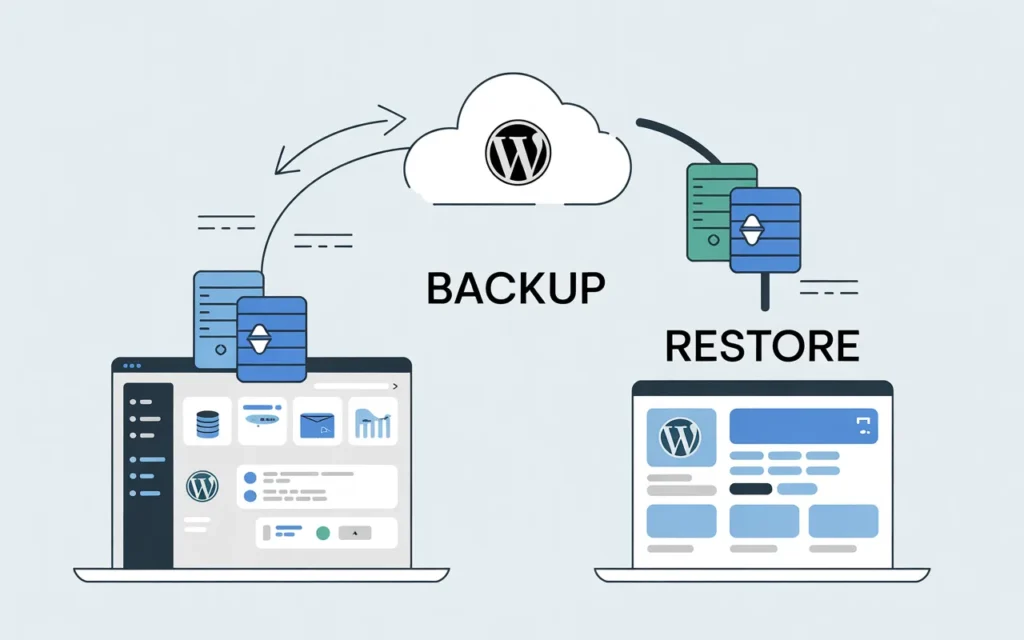
If you run a WordPress website, backup and restore is not optional — it’s a critical survival skill.
I’m writing this guide based on real experience, not theory. I personally restored my WordPress site using Hostinger backups (.tar.gz + .sql), faced real issues like missing wp-config.php and 500 Internal Server Error, and fixed them successfully. Here you will find complete WordPress Backup and Restore guide and solution for error you might face during this process.
This post documents exactly what worked, step by step. you can also refer wordpress document.
Why WordPress Backup Is So Important
You usually understand the value of a backup only after something breaks.
A proper backup protects you from:
- Hosting issues or server crashes
- Hacking or malware attacks
- Accidental deletion of files or database
- Failed theme or plugin updates
If you work with testing sites, subdomains, or migrations, backups are absolutely essential.
How To Take Backup of WordPress Website
Method 1: Hosting Backup
Check your hosting dashboard (Bluehost, Hostinger, SiteGround, etc.). Most managed hosting providers have a “Backups” tab where you can I personally used this method for backup other I have not tried when I will try Will write more about that. In hostinger when you request backup you will get link on your registered email address from there you can download the backup files.
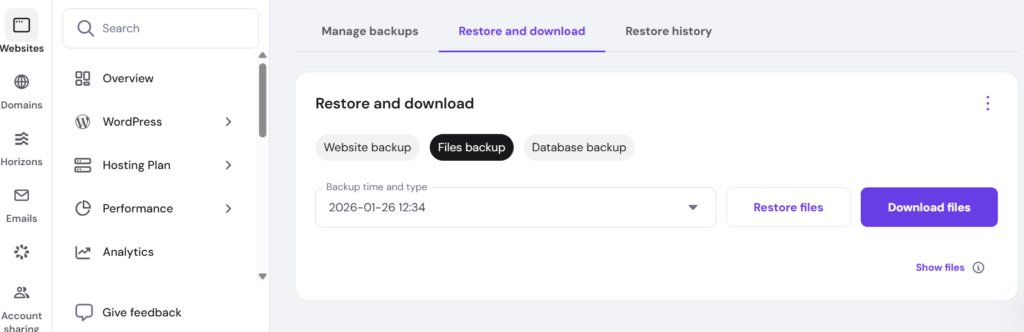
- Create a manual snapshot with one click.
- Enable automated daily backups (highly recommended)
Method 2: The Easiest Way (Using a Free Plugin)
This is best for most situations. I recommend UpdraftPlus because it’s reliable, free, and lets you save backups directly to Google Drive or Dropbox. UpdraftPlus is best plugin available for wordpress backup and restore process.
- Install the Plugin:
- Go to your WordPress Dashboard → Plugins → Add New.
- Search for “UpdraftPlus”.
- Install and Activate it.
- Take a Manual Backup:
- Go to Settings → UpdraftPlus Backups.
- Click the big blue Backup Now button.
- Check both boxes: “Include your database in the backup” and “Include your files in the backup”.
- Click Backup Now.
Method 2: The Manual Method (For Developers)
Since you are a developer, you might prefer this method to have a clean, raw copy of your data without plugin overhead.
Part A: Backup Files (FTP/cPanel)
- Open FileZilla (or use cPanel File Manager).
- Connect to your server.
- Download your entire root folder (usually named public_html or www).
- If that’s too big, minimally ensure you download:
- wp-content folder (contains your themes, plugins, and uploads/images).
- wp-config.php file (contains your database password and settings).
- .htaccess file.
Part B: Backup Database (phpMyAdmin)
Your files are useless without the database (posts, comments, settings).
- Log in to your hosting cPanel.
- Open phpMyAdmin.
- Select your WordPress database from the left sidebar.
- Click the Export tab at the top.
- Keep the method as “Quick” and format as “SQL”.
- Click Go to download the .sql file.
When you download a backup from Hostinger, you typically get two files:
- .tar.gz file – Website files (WordPress core, themes, plugins, uploads)
- .sql file – Database (posts, pages, users, settings)
Together, these two files form a 100% complete WordPress backup.
Before You Start the Restore Process
Make sure you have the following ready:
- Access to Hostinger hPanel
- File Manager access
- phpMyAdmin access
- A new MySQL database (recommended)
Also ensure the folder where you are restoring the site (main domain or subdomain) is empty.
Step 1: Restore the .tar File (Website Files)
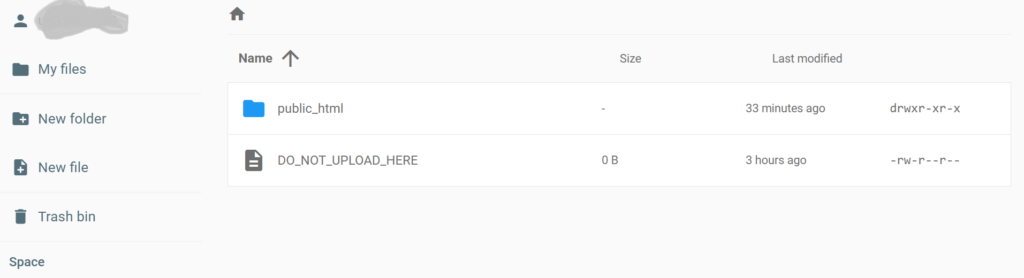
- Go to Hostinger → Websites → File Manager
- Open the target folder:
- Main domain: public_html/
- Subdomain: public_html/blog/
- Upload the .tar.gz file
- Right‑click → Extract
After extraction, you should see:
- wp-admin
- wp-content
- wp-includes
⚠️ If these folders are inside another folder, move them directly into the root directory.
Step 2: Create Database & Import .sql File
- Go to Hostinger → Databases → MySQL Databases
- Create a new database
- Create a user and assign it to the database with ALL PRIVILEGES
- Open phpMyAdmin
- Select the database → Import → upload .sql file → Go
After import, confirm that tables like wp_posts, wp_users, and wp_options exist.
Step 3: wp-config.php Configuration? (Very Common Issue)
Open the file using File Manager (in cPanel) or right-click and edit in FileZilla. You need to update the following 4 lines with the new database details you created in your hosting panel (MySQL Databases):
<?php
define(‘DB_NAME’, ‘database_name’);
define(‘DB_USER’, ‘database_user’);
define(‘DB_PASSWORD’, ‘database_password’);
define(‘DB_HOST’, ‘localhost’);
Without this file, WordPress will not load.
Step 5: Fix Website URL (For New Domain or Subdomain)
If you restored the site on a new domain or subdomain:
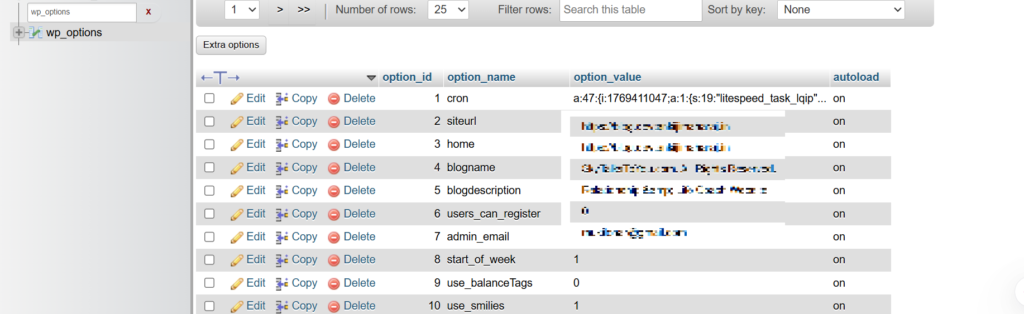
- Open phpMyAdmin
- Go to the wp_options table
- Update these values:
- siteurl
- home
Set them to:
https://yourdomain.com
- Incorrect URLs can cause white screens or redirect loops.
Step 6: Final Checks
- Open your website in the browser
- Visit /wp-admin and log in
- Go to Settings → Permalinks → Save Changes
Your WordPress site should now be fully restored 🎉
Final Thoughts (Based on Real Experience)
Before doing this myself, I always thought WordPress restore was complicated.
But after facing real issues and fixing them manually, the process became clear.
If you are serious about WordPress:
- Take weekly backups
- Test the restore process at least once
- Do not rely only on plugins
How to Fix 500 & 403 Errors on Hostinger: Extracting Large Backups (Personally Tested)
Moving or restoring a website backup on Hostinger can be a nightmare when the file size exceeds 300MB. Most users encounter the dreaded 500 Internal Server Error during extraction or a 403 Forbidden error after restoration. After hours of troubleshooting, I have found the 100% working method to bypass these limits.
Phase 1: Bypassing the 500 & 409 Extraction Errors
When you use the default Hostinger File Manager for a .tar.gz file, the server often times out (500 Error) or conflicts with existing files (409 Error).
The Solution: Use a Custom PHP Extraction Script
Don’t rely on the browser’s UI. Create a file named quick-extract.php in your target folder and paste this code:
PHP
Run this by visiting yourdomain.com/quick-extract.php in your browser.
Phase 2: Fixing the “403 Forbidden” Access Denied Error
If your files are extracted but you see a 403 error, the server is blocking access. Even if you rename .htaccess, it might not work. Here is the checklist that actually fixed it for me:
When you extract a backup file, the server doesn’t just unpack the files; it often applies the original folder permissions from the old server to your new folder. It actually change permission of root folder public_html you can restore that
This is the specific “Personal Experience” section of your blog. Focusing purely on the 403 Forbidden issue and how the root folder permission was the real culprit will make your post very unique and helpful.
How I Fixed the 403 Forbidden Error on Hostinger After Backup Restore
If you just moved your website from an old domain to a new subdomain and are staring at a 403 Forbidden error, you aren’t alone. Even if your files are all there, the server is essentially saying, “I see the files, but I’m not allowed to touch them.”
After personally testing every “standard” fix, I found the real reason why this happens during a .tar.gz extraction.
The Problem: Permission Hijacking
When you extract a backup file, the server doesn’t just unpack the files; it often applies the original folder permissions from the old server to your new folder.
Even if your index.php is set to 644, if the public_html or your subdomain folder has its permissions changed to something like 700 or 777 during extraction, the server will block all access.
If you have tried renaming .htaccess and it didn’t work, follow these steps in this exact order:
1. Fix the “Parent Folder” Permission
Don’t just look at the files inside the folder. Look at the folder itself.
- Go to your Hostinger File Manager.
- Find your root folder (usually public_html or your subdomain folder like blog).
- Right-click the folder and select Permissions.
- Ensure it is set to 755. If it is anything else, change it back. This allows the server to “enter” the directory.
2. Use Hostinger’s “Fix File Ownership” Tool
This is the “magic button” that solves what manual editing misses.
- Go to hPanel > Files > Fix File Ownership.
- Select your website from the dropdown.
- Click Execute. This tool forces the server to recognize you as the rightful owner of the files, clearing any 403 blocks created during the extraction of the .tar.gz file.
3. Verify the Index File
Ensure that your index.php is sitting directly inside that folder. If the extraction created another sub-folder (e.g., public_html/backup/index.php), your main URL will show a 403 error because the root is empty. Move all files to the correct root directory.
Why the “Echo Test” is Your Best Friend
To confirm the fix, I added this code to the very top of my index.php:
PHP
<?php echo “Server is reading this file”; die(); ?>
Before I fixed the folder permissions, this didn’t show anything—just the 403 error. The moment I corrected the root folder to 755, the message appeared. This proved that the issue wasn’t the code or the database, but the server’s permission to read the folder.
1. The “Fix File Ownership” Tool
This is the most underrated tool in hPanel. Go to Files > Fix File Ownership. Select your domain and click Execute. This resets the server-side permissions that manual CHMOD commands often miss.
2. Verify the Document Root
When restoring to a subdomain, ensure your files are in the specific folder created for that subdomain (e.g., public_html/blog), not just the root public_html. If the server looks at an empty folder, it will throw a 403 error.
3. The ModSecurity Toggle
Sometimes Hostinger’s firewall thinks your restored files are a security threat. Temporarily disable ModSecurity in the Security tab of hPanel to see if the site loads.